
Workspace country
The workspace country fills in defaults: the currency of new estimates, the working-day calendar for the timeline and the time zone. You only fix what does not fit.
What the country sets
Section titled “What the country sets”| Country | Default currency | Working-day calendar |
|---|---|---|
| Eurozone | EUR | TARGET2, ECB payment system closing days |
| USA | USD | US federal holidays (OPM) |
| Georgia | GEL | Georgian production calendar |
| Kazakhstan | KZT | Kazakh production calendar |
| China | CNY | Chinese production calendar (State Council) |
| Belarus | BYN | Belarusian production calendar |
| Russia | RUB | Russian production calendar |
The country also sets the FX rate source: the workspace settings start with your country's source, and you can override it. For rates, see Currencies and rates.
How the country is detected on first sign-in
Section titled “How the country is detected on first sign-in”When you create a workspace, Dead Point picks a country from hints: the browser time zone, the browser language and the country of your IP address. If none of them fits, the Eurozone is set. Russia is never picked automatically: select it manually in the workspace settings (General tab, Time and region section, Country field).
The Detected country banner shows the result: a flag, the country name and a label saying where it came from.
| Banner label | Where the country comes from |
|---|---|
| By browser timezone | The browser time zone |
| By browser language | The region in the browser language settings |
| By IP | The country of the IP address |
| Fallback default | No hint matched, the Eurozone is used |
How to change the country
Section titled “How to change the country”- If the Detected country banner shows the wrong country, click Edit and pick the right one from the list
- Later, open the workspace settings and the General tab
- In the Time & region section, set the Country field
- Check the Default currency field below it and change it if needed
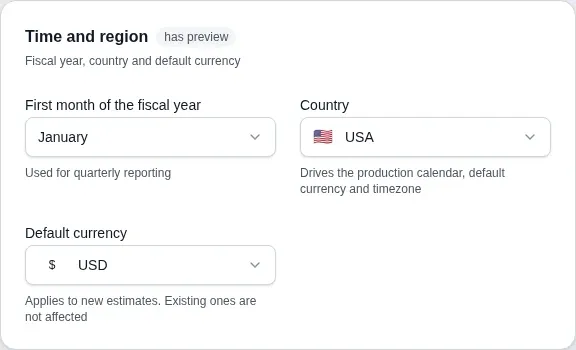
The field hint says: drives the production calendar, default currency and timezone.
The list contains only the countries from the table above.
Address, autosave and preview
Section titled “Address, autosave and preview”Workspace address
Section titled “Workspace address”The Address section of the General tab sets part of the links to projects and estimates (the URL address field takes Latin letters, digits and hyphens). The address does not change when you rename the workspace. If you change it by hand, links to projects with the old address stop opening, while the public estimate links your clients have stay the same.
Autosave
Section titled “Autosave”Settings save without a button. A status shows above them: Saving…, then Saved at and the time, and on a failure Not saved with a Retry button.
The preview panel
Section titled “The preview panel”Next to the settings on the General tab sits the Preview panel. It shows how a change looks in the product and follows the section you click into. Sections that have a preview carry the has preview badge.
| Section | What the panel shows |
|---|---|
| Profile | The icon and name in the menu, in a narrow 200 px column and in the estimate header the client sees |
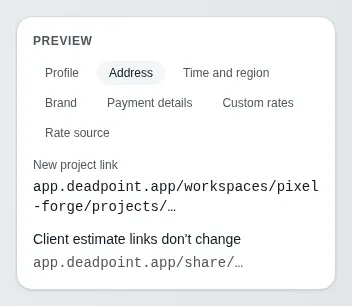
| Address | The new project link and the old one that will stop working, and a reminder that client estimate links don't change |
| Time and region | The total of the latest estimate in the chosen currency, the country holidays and the date when working days counted from today end |
| Brand | The estimate cover with the title, the total and the Approve button |
| Payment details | The How to pay block as the client sees it; until the details are filled in, the panel warns that the client won't see a payment block |
| Custom rates and Rate source | An estimate converted to the workspace currency at the chosen rate: the rate, its source and the date |