

What the client sees by link
Your client opens the link and understands three things within a minute: how much it costs, when it will be ready and what to do next. The page walks them through Review, Approve and Pay, and the delivery date sits large on the first screen, like on a poster. See the live page on the demo link.
Header
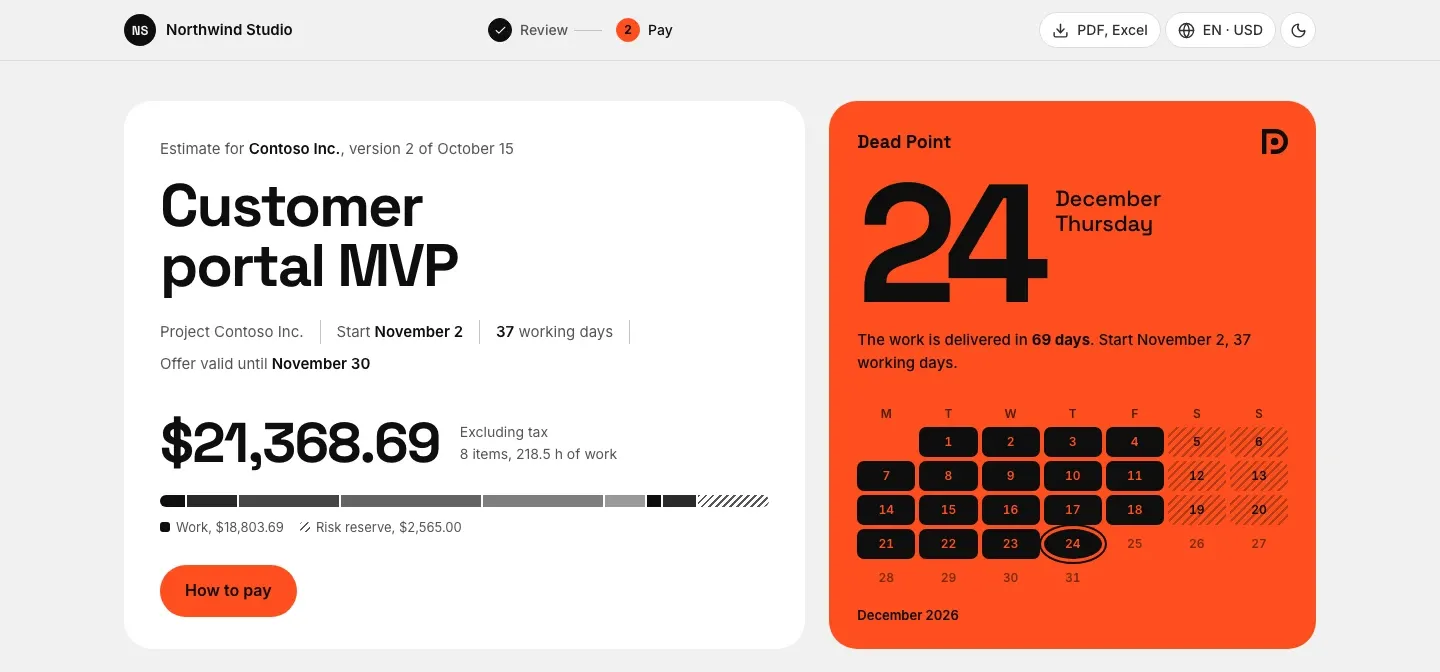
Section titled “Header”- your studio name and logo
- the Review, Approve, Pay steps. "Approve" appears when an approver is assigned, "Pay" when payment details are on. The marks update as the client moves along
- a PDF, Excel menu for downloads
- one Language and currency menu: the page language and the currency for totals
- a theme toggle. The page follows the client's system theme, and a manual choice lasts until the tab is closed
First screen
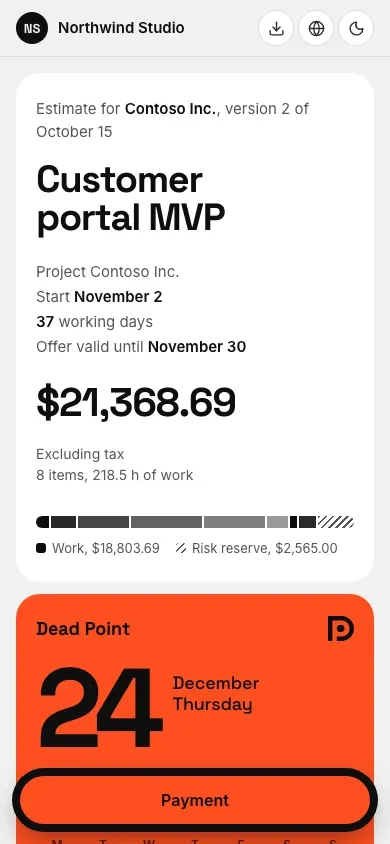
Section titled “First screen”On the left is the estimate card: who it is for and which version, the title, start date, number of working days, offer validity, status, price and a bar showing what the price is made of (work, risk reserve).
On the right is the Dead Point poster: the delivery date in large type, how many days are left ("The work is delivered in 12 days") and a mini calendar of the month.
The poster uses the accent color of the link or the studio, Dead Point orange by default. The text on it is white or black: the page picks the one with a contrast of at least 4.5:1 against the background. If neither passes, the color tone shifts slightly.
Sections
Section titled “Sections”Below come the sections in the order you set in the link editor. The default order:
- Timeline and Dead Point
- Scope of work
- Texts and terms
- Approval
- How to pay
Hidden sections are not drawn. A sticky navigation bar above the sections stays on screen while scrolling.
Timeline and calendar
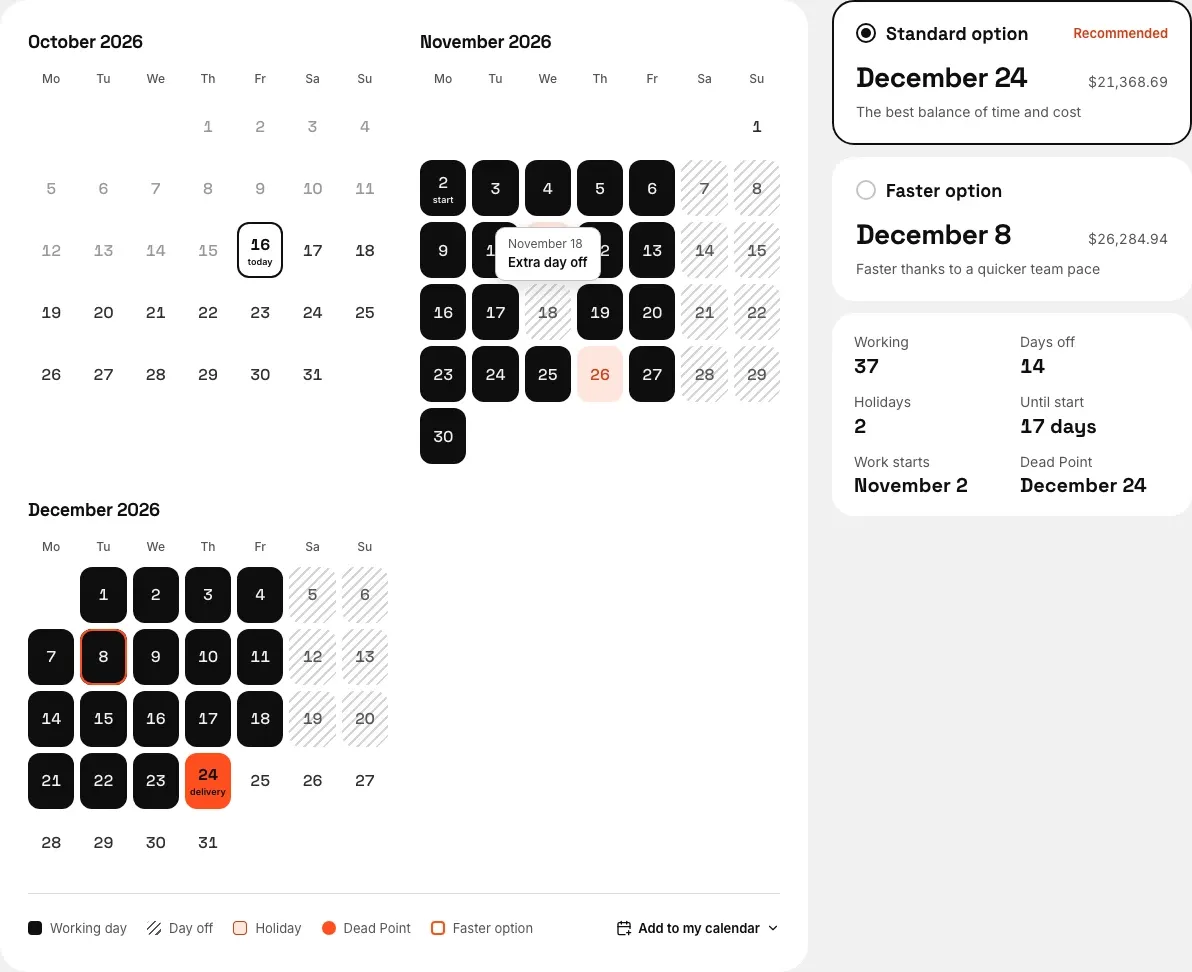
Section titled “Timeline and calendar”The calendar is drawn day by day from the start to Dead Point using exactly the work calendar the version was calculated with: working days, days off, holidays, the start day, the delivery day and today. If the client picks the faster option, its date shows on the calendar.
- up to two months: month grids
- longer: a strip of weeks from the start to Dead Point and compact months
Below the calendar are the facts: how many working days, days off and holidays the timeline includes.
Holiday name
Section titled “Holiday name”A hint with the date and the holiday name opens on hover, with Tab, or with a tap on the day. Esc closes it, on a phone a tap outside does.
The name comes from the country calendar and is shown in the report language. For example, a US report in English calls July 3, 2026 "Independence Day (observed)": July 4 falls on a Saturday, so the day off moves to Friday. A Russian report calls May 9 "День Победы". In Georgian and Chinese the name is English for now, for Georgia May 9 reads "Day of Victory over Fascism".
The same hint explains other days off in the middle of the week. A day off that was moved is labeled with the name from the country calendar: in a US report July 3, 2026 reads "Independence Day (observed)". A day off the author added to the estimate reads "Extra day off". Plain Saturdays and Sundays do not open a hint on their own.
Days off in a row
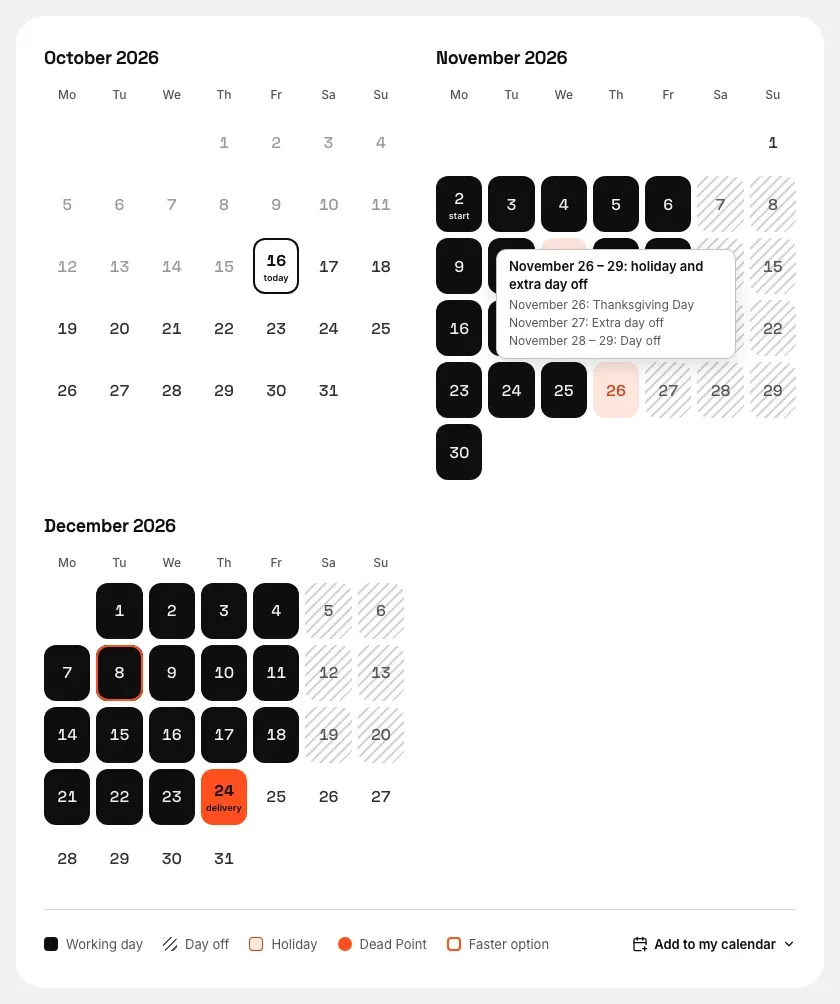
Section titled “Days off in a row”When days off follow each other, the calendar shows one hint for all of them. A group is a stretch of days off that holds a holiday, a moved day off, or an extra day off, together with the Saturday and Sunday next to it. A stretch of plain Saturdays and Sundays is not a group.
Hover over any day of the group or tap it: the hint title gives the dates of the stretch and the kinds of reasons, below it come lines by day. With Tab, focus lands only on the first day of the group, the other days open the hint with the mouse and with a tap.
For example, in a US report July 4, 2026 falls on a Saturday, so the day off moves to Friday, July 3. July 3 to 5 is one group, "transfer": Friday "Independence Day (observed)", then Saturday and Sunday as "Day off".
Add to my calendar
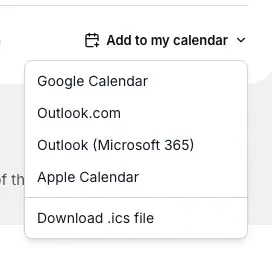
Section titled “Add to my calendar”The Add to my calendar button in the timeline section adds the delivery date to the client's calendar. The menu offers:
- Google Calendar
- Outlook.com
- Outlook (Microsoft 365)
- Apple Calendar
- Download .ics file
Google and Outlook open an event form in a new tab. Apple Calendar opens the "Add" dialog in Safari. On iPhone, iPad and Safari on Mac, Apple Calendar is the first item.
The calendar gets an all-day event Dead Point: estimate name with a reminder the day before, and a separate work start event if the start is earlier than delivery. The description has the total, the studio and a link to the estimate. On a password-protected link the file is built right in the browser, so the button works there too.
Scenarios
Section titled “Scenarios”If you show both options, they come as Standard option and Faster option cards, and the recommended one is marked Recommended. The client's choice updates the poster, the price and the option in the approval form.
Scope of work
Section titled “Scope of work”Rows with a bar showing their share of the price, plus quantity and price with the detailed preset. Items in another currency show the original amount under the converted one. Totals appear once: work total, reserve, tax, total. Below them is a rate footnote if the estimate has conversions (see Currencies and rates).
Approval and payment
Section titled “Approval and payment”Approval is now built into the page, with no separate window: the client picks an option, enters their name and email, confirms the terms, gets a code at the approver's email and types it in. Details in Approval flow.
When approval and payment come one after another, they sit side by side in a shared Approval and payment section. The payment block is described in Payment details.
On a phone
Section titled “On a phone”On a narrow screen the page becomes a single column with no horizontal scrolling. A sticky bottom bar has an Approve button (when an approver is assigned) and a Payment button (when payment details are on) that jump straight to the section.
Page language
Section titled “Page language”The page opens in the language of the client's browser: English, Russian, Georgian or Chinese. The client can switch the language in the Language and currency menu, and you can set the language in advance with the ?locale= parameter in the link. More in Languages.
Previews in messengers
Section titled “Previews in messengers”When the link is sent in a messenger or an email, a preview card in the shape of a ticket appears: price, start, working days, version and the Dead Point date on a stub in the link color. For a password-protected link the preview shows only the studio and the estimate title, without the amount, client or timeline.