

Share an estimate with a client by link
Send an estimate to your client by client link, with no sign-up on their side. You can open access to anyone with the link or protect it with a password, then revoke it at any time.
Before you start
Section titled “Before you start”- The estimate has at least one published version
How to publish
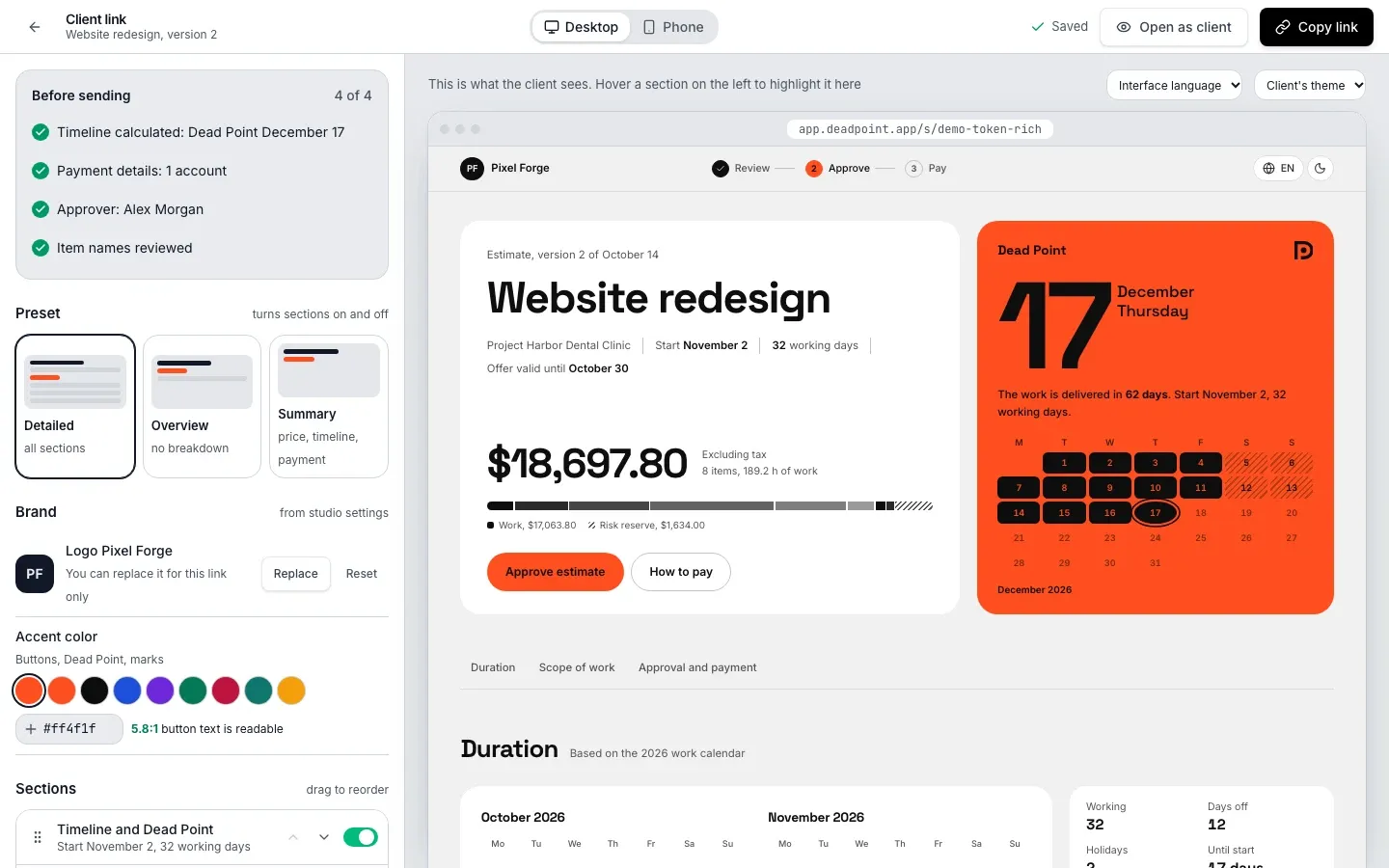
Section titled “How to publish”The link is set up in the client link editor: settings on the left, a preview of the client page on the right. Access lives in the Access and sending group.
-
Open the estimate and click Configure client link
-
In the Access and sending group, expand Access and choose a mode:
- Open link: anyone with the link can open the report
- Password-protected: the recipient enters a password to open the report
-
For the password mode, enter a password in the Password field, at least 8 characters. You can click Generate, and the strength meter tells you if the password is too simple
-
Check I saved the password and understand that it cannot be recovered
-
Go through the Before sending checklist and the preview on the right, then click Create link
-
In the Share link created window, copy the link and the password with Copy link and Copy password, then click Done
What the recipient sees
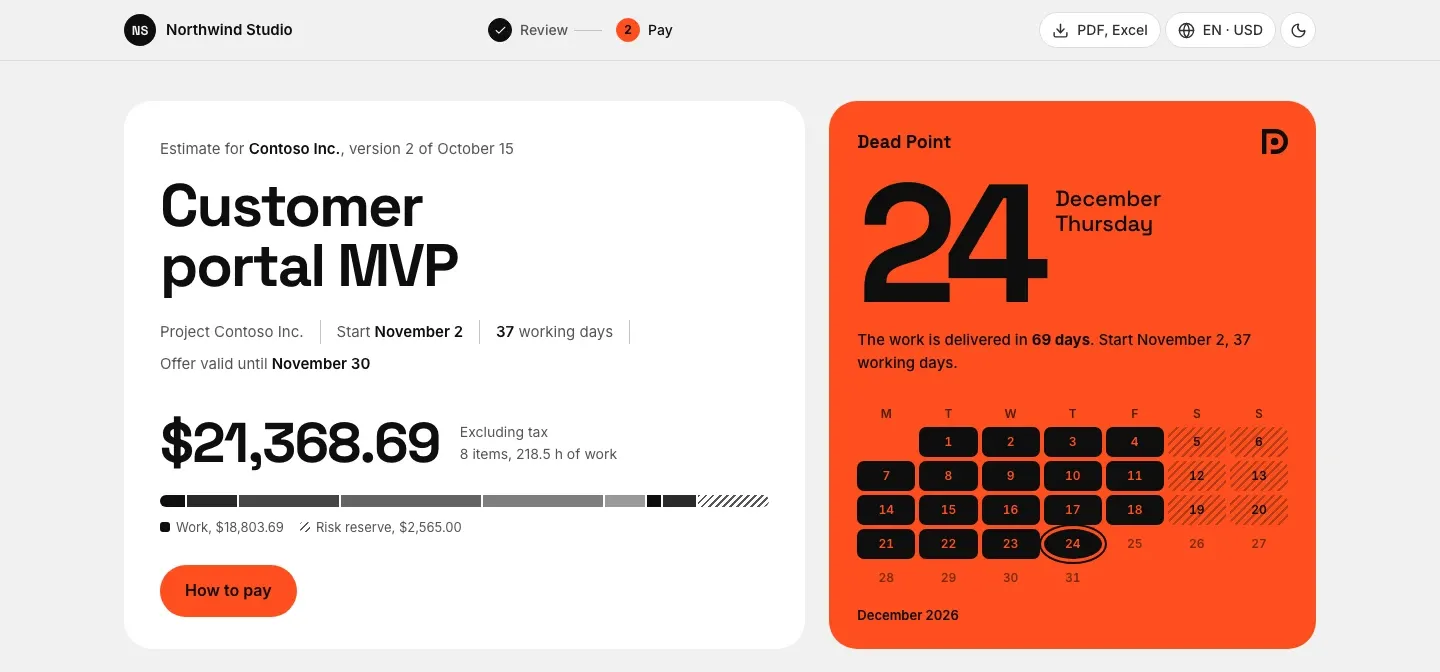
Section titled “What the recipient sees”The report opens right away, no sign-in needed. The page layout is described in What the client sees.
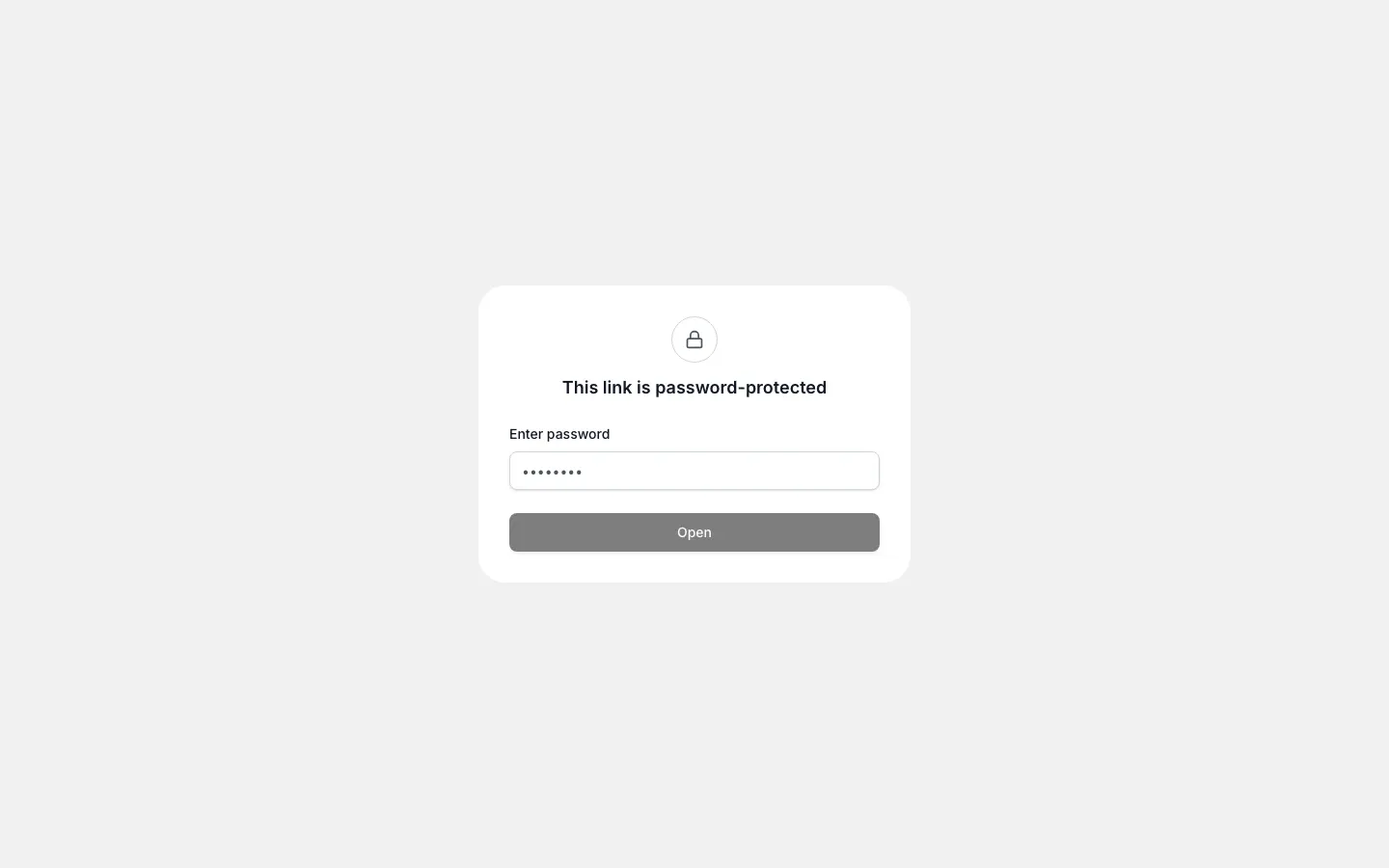
First, the This link is password-protected screen opens: the recipient types the password in the Enter password field and clicks Open. After a correct password, they do not need to enter it again for 24 hours.
Then the recipient sees the same report as with an open link. They can download it as PDF or Excel, and if you assigned an approver, they can also approve the estimate or request changes right on the page.
Link lifetime
Section titled “Link lifetime”The link has no expiry date: it works until you revoke it.
The Offer valid until field under Recipient, payment, offer validity sets how long the commercial offer is valid, not how long the link lives.
Change settings after sending
Section titled “Change settings after sending”An open link saves itself: the client sees your edits right away at the same address. A password-protected link is updated with Update link together with a new password, because its content is sealed when it is created.
Change the password
Section titled “Change the password”In the link history section, click Rotate password, set a new one and confirm. The Share link created window opens with the updated link and the new password: copy them and send them to the recipient. Everyone with the old password loses access, and active recipient sessions are reset.
Revoke access
Section titled “Revoke access”Click Revoke share. Access closes for everyone at once, and the old link stops working.