

Client link editor
The link editor shows settings on the left and, on the right, the same page your client will see. Every change shows up in the preview right away, so you no longer set up a link blindly. This is also where you set the preset, color and logo, section order, access and payment details.
How to open it
Section titled “How to open it”Open a published estimate and click Configure client link. The Client link editor opens with the estimate name and version number. Back to the estimate takes you back.
On a narrow screen, settings and preview switch with the Settings and Preview tabs.
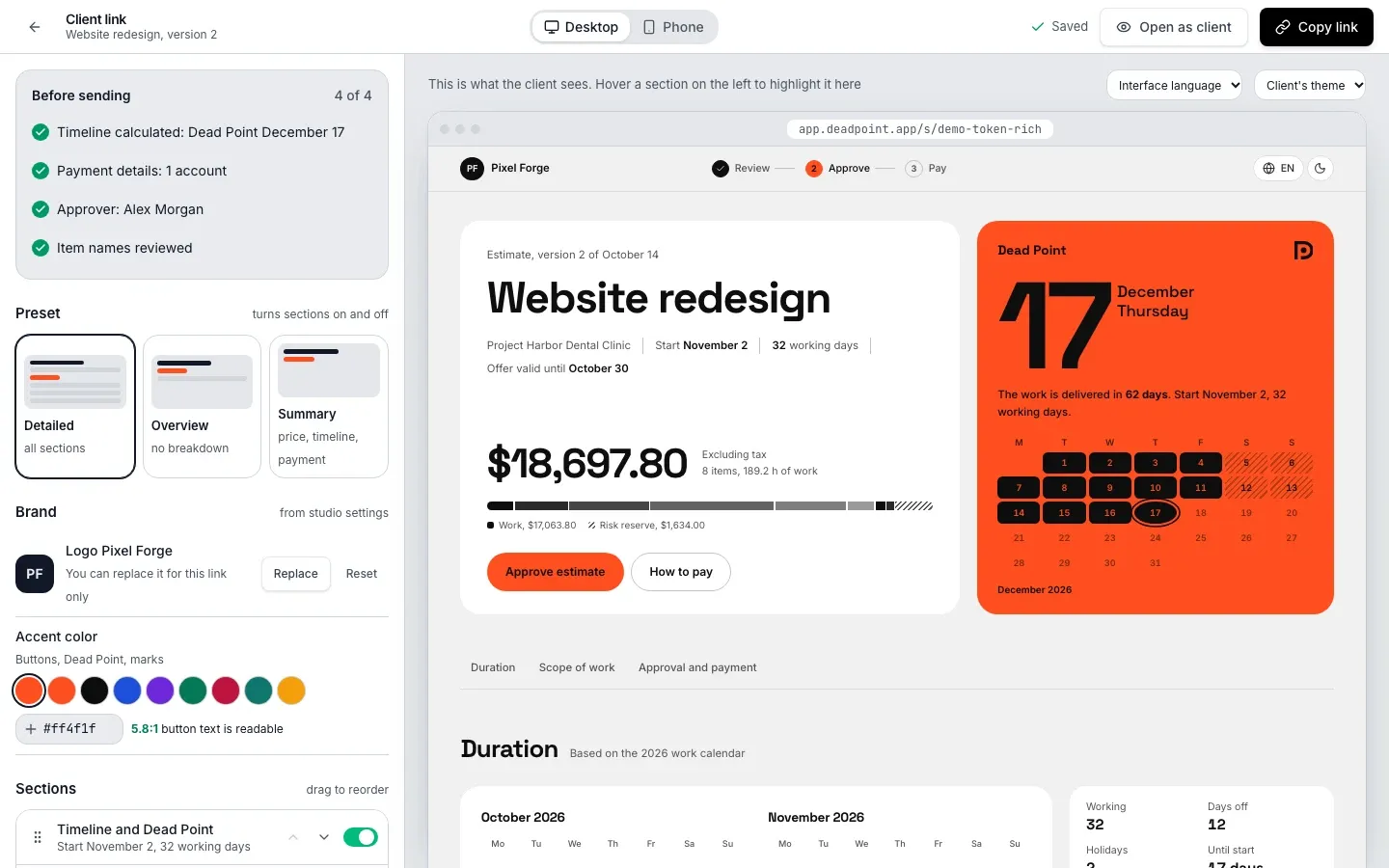
Preview
Section titled “Preview”Above the preview you can choose:
- the device: Desktop or Phone
- Preview language: see the page in English, Russian or Georgian
- Preview theme: Client's theme, Light or Dark
Hover a section in the settings and it is highlighted in the preview. Open as client opens the real page in a new tab.
Before sending
Section titled “Before sending”At the top is the Before sending checklist with a counter, for example "3 of 4". It checks:
| Item | Done | What to do |
|---|---|---|
| Timeline | Timeline calculated: Dead Point Oct 26 | No start date: set it in the estimate |
| Payment details | Payment details: 2 accounts | No accounts: add payment details in studio settings |
| Approver | Approver: Anna Smith | Add an approver |
| Item names | Item names reviewed | Review item names, the Reviewed button |
The checklist does not block sending, it shows what is missing.
Preset
Section titled “Preset”A preset turns sections on and off in one click:
| Preset | What the client sees |
|---|---|
| Detailed | All sections, scope of work with quantity and price |
| Overview | Total, timeline and scope of work without the breakdown |
| Summary | Price, timeline, payment. No scope of work and no terms |
"Summary" fits when the client needs a short answer: how much, when and where to pay. The same preset works in the PDF.
The logo and color come from studio settings by default. You can change them for one link:
- Logo: Replace and Reset buttons. A link logo can be uploaded after the link is created
- Accent color: used for buttons, the Dead Point poster and marks. Pick a color from the palette or enter your own HEX like
#ff4f1f
The editor checks contrast right away. button text is readable means all is well. tone adjusted so the text stays readable means the page uses a slightly different shade, so text on buttons and the poster stays readable (contrast of at least 4.5:1).
Sections
Section titled “Sections”The Sections group lists the five page sections:
- Timeline and Dead Point
- Scope of work
- Texts and terms
- Approval
- How to pay
- Drag a section by its handle to change the order. From the keyboard, the move up and move down buttons do the same
- Turn the toggle off to hide a section from the client
- Click Edit next to a section to change its content: items, terms texts, the approver
Under each section name there is a short summary: "Start Oct 19, 6 working days", "The code goes to anna@example.com", "2 payment accounts" or Hidden.
The section order applies to the client page and the PDF. Hidden Texts and terms are also removed from the PDF and the Excel file.
Display
Section titled “Display”The Display group holds the earlier page settings: project name, logo, the SP explanation, which scenarios to show and which to recommend, how to show the risk reserve.
Access and sending
Section titled “Access and sending”The Access and sending group has:
- Access: an open link or password protection (see Share by link)
- Recipient, payment, offer validity: who the estimate is for, the recipient's tax ID and address, payment details, Offer valid until and the next-step button
- History: link and approval events
Saving
Section titled “Saving”- An open link saves itself almost immediately after an edit. The status next to the buttons reads Saving, Saved or Not saved. The client sees changes right away at the same address
- A new link is created with Create link
- A password-protected link is updated with Update link together with a new password, as the hint says: Set a new password to update the link. Its content is sealed at creation, so it cannot be rebuilt without a new password