
Client approval of an estimate
With approval, the client link leads to a decision: your client approves the estimate or requests changes, and you get a confirmed answer. The client confirms their identity with a code from an email, so the decision comes from exactly the recipient you named.
Before you start
Section titled “Before you start”- The client link is already created (see Share an estimate with a client)
- You know the name and email of the person who will approve
How to assign an approver
Section titled “How to assign an approver”- Open the estimate and click Configure client link
- In the Sections group, click Edit next to Approval
- Fill in Approver name and Email
- Click Save approver
- Send the public link to your client
The Before sending checklist then shows Approver: with the approver's name, and the section summary shows the address the code goes to. You can change the approver later with Update approver or remove them with Remove approver.
What the client sees and does
Section titled “What the client sees and does”On the client link page, the header shows the Approve step, and the approval section sits below. The form is built into the page, no separate window opens. On a phone, the Approve button in the bottom bar leads to it.
- If the page shows two options, the client picks the standard or the accelerated one in Which option are you approving
- They enter Name and Email, and optionally Company (optional)
- They check I have reviewed the estimate and approve the offer terms and click Get code
- A 6-digit code arrives at the approver's email. The client types it in the code field
- The client clicks Approve. To ask for edits instead, they click Request changes, write a Comment and confirm with a code the same way
Both outcomes are final. After the client approves the estimate or requests changes, they cannot respond by this link again. After a successful approval, the page shows the Estimate approved mark, the Approve step in the header is checked, and if payment details are on, Pay becomes the next step (see Payment details).
When approval is not possible
Section titled “When approval is not possible”Approval is blocked if:
- the offer validity period has ended: the client sees the Offer has expired mark
- you revoked the link: revoking overrides any other status
- you published a new version: the old link gets the The author updated the offer mark
Approval statuses
Section titled “Approval statuses”The current state of the link is shown in the Approval section of the link editor. Possible statuses:
| Status | What it means |
|---|---|
| Recipient not set | No approver yet, the client can only view |
| Awaiting response | The approver is set, the client has not answered yet |
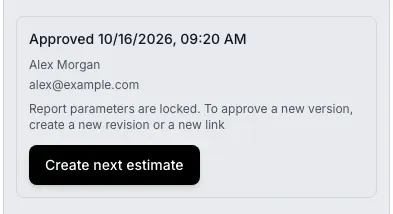
| Approved | The client approved the estimate (final) |
| Changes requested | The client requested changes (final) |
| Offer expired | The offer validity period has ended |
| Link expired | The link itself has expired |
| Link revoked | You closed access |
| A newer version exists | A newer version is published, a new link is needed |
Approval history
Section titled “Approval history”Every approval event goes to History in the link editor (the Access and sending group): Approver set, Verification code requested, Code attempt failed, Estimate approved, Changes requested. The history shows who made the decision and when.
Notifications for the author
Section titled “Notifications for the author”You see what the client does on the link in the app.
| Event | What you get |
|---|---|
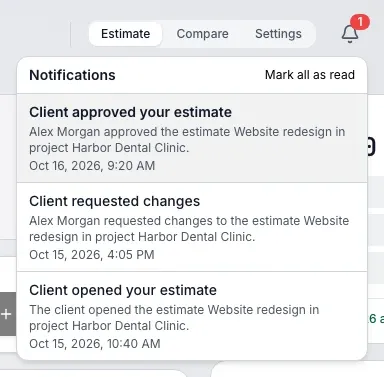
| The client opens the link for the first time, including a password-protected one | The notification Client opened your estimate and an email |
| The client approves the estimate | The notification Client approved your estimate |
| The client requests changes | The notification Client requested changes |
An open counts once per link: repeat visits give no new notifications.
Where to look
Section titled “Where to look”The app header has a bell, and the number on it counts unread notifications. Click it to open the list: an entry leads to the estimate, and Mark all as read marks the whole list as read.
Email about an open
Section titled “Email about an open”You can turn the email about an open off. Open the user menu, choose Profile and in the Notifications block switch off Email when a client opens an estimate. The setting is saved at once, no button needed.

The in-app notification always arrives. Notifications about approval and change requests cannot be turned off: the switch affects only the email about an open.
Reminder about the next estimate
Section titled “Reminder about the next estimate”After the first approval you get one email: 7 days later, if you have not created a new estimate in that time. It goes only to people who agreed to the mailing. To unsubscribe use the link in the email, and no more reminders will come.
Next estimate after approval
Section titled “Next estimate after approval”When the link status is Approved, the Approval section of the link editor shows the Create next estimate button. It makes a copy of the estimate in the same project and opens its editor. What goes into the copy is described in Estimate copy.