

Estimate versions and compare
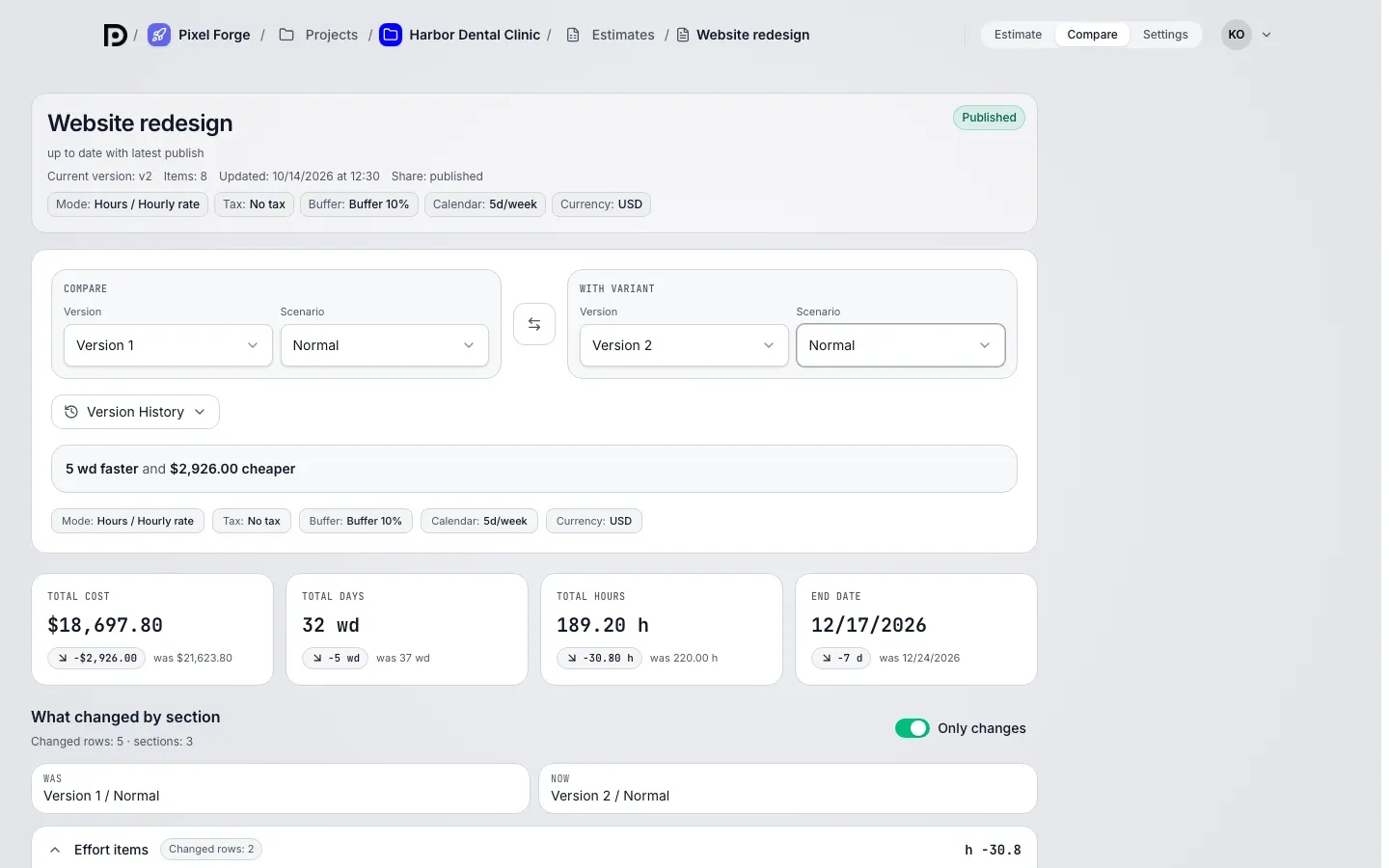
Each publish saves the state of the estimate as a separate numbered version. You see the history of all versions and can compare any two to understand what changed.
How a version is created
Section titled “How a version is created”A version appears when you publish. You do not need to create it by hand.
- Open the estimate and get the draft into the state you want
- Click Publish version
- A new entry with the next number appears in the Version History on the Compare tab
Version history
Section titled “Version history”On the Compare tab the history opens on request with the Version History button: a list of every published version of the active estimate. Each version has Left and Right buttons that put it on that side of the comparison. A version in the list can have a marker:
- current: the version the client link currently points to
The most recent publish is shown separately, as the Latest published line in the estimate status, not as a marker in the list.
Compare
Section titled “Compare”The Compare tab puts two selections side by side: two estimate versions or two scenarios, Normal and Overload.
- Go to the Compare tab
- On the Compare side pick the Version and Scenario of the base, on the With variant side pick the target
- Swap sides switches the base and the target
- Review the change sections below
If the draft settings changed and the new calculation has not finished, "Result is out of date" appears above the comparison: the last calculation stays below, and the summary and price per day appear once it updates. If the calculation failed, a Retry button is shown there.
Change sections
Section titled “Change sections”Changes are grouped into four sections:
| Section | What it shows |
|---|---|
| Effort items | rows with changes in effort or cost |
| Fixed costs | rows with changes in the fixed amount or tax behavior |
| Totals / tax | deltas in the subtotal before tax, the tax and the total |
| Duration / calendar impact | the difference in working days and end date |
What each row shows
Section titled “What each row shows”For each changed line item you see its type, Effort item or Fixed-cost item, and the kind of change:
- changed: the item is in both selections, but the values differ
- added: the item is only in the target
- removed: the item was in the base but is not in the target
In the What changed by section table each row has Was, Now and Change columns. The Only changes switch hides rows without differences. On a phone the table turns into cards: the was and now values sit as a pair, one under the other.