

MCP: connect an agent
What is MCP
Section titled “What is MCP”MCP (Model Context Protocol) is a way to give an AI agent access to your projects and estimates in Dead Point. The agent (Claude Code, Cursor, Codex CLI or Gemini CLI) reads estimates and, with write access, builds drafts, publishes versions and creates client links. A token grants the access: it works like a password, so store it like one and issue a separate token for each agent. It is free to use: 100 calls per month per workspace and 60 calls per minute per token.
Issue a token
Section titled “Issue a token”- Open "Account", the "MCP" tab.
- Enter a token name, for example "Claude Code on laptop".
- Choose the access and click "Issue token".
- Copy the token. We show the token once: it cannot be viewed again.
Treat the token like a password. Issue a separate token for each agent, so it is easy to revoke.
Token access
Section titled “Token access”| Access | What the agent can do |
|---|---|
| Read only | Views projects and estimates |
| Read and draft estimates | Also creates draft estimates, edits or removes items in drafts created over MCP on your behalf, publishes versions of any estimate in the workspace and creates client links if you can edit estimates in the project (Client proposal through an agent) |
Choose write access only for a client you trust. A write request with a read-only token is refused.
Connect an agent
Section titled “Connect an agent”After you issue a token, the "Token issued" window leads you through four steps: save the token, connect the agent, check the connection, give the first task. Below is the same second step for each agent. The window fills in your token; here it is shown as <token>. The server address on the screenshots is illustrative: use the line from your own window.
Claude Code
Section titled “Claude Code”Open your terminal and paste the command. The server is added to the Claude Code settings, no restart needed.
claude mcp add --transport http deadpoint https://api.deadpoint.app/mcp --header "Authorization: Bearer <token>"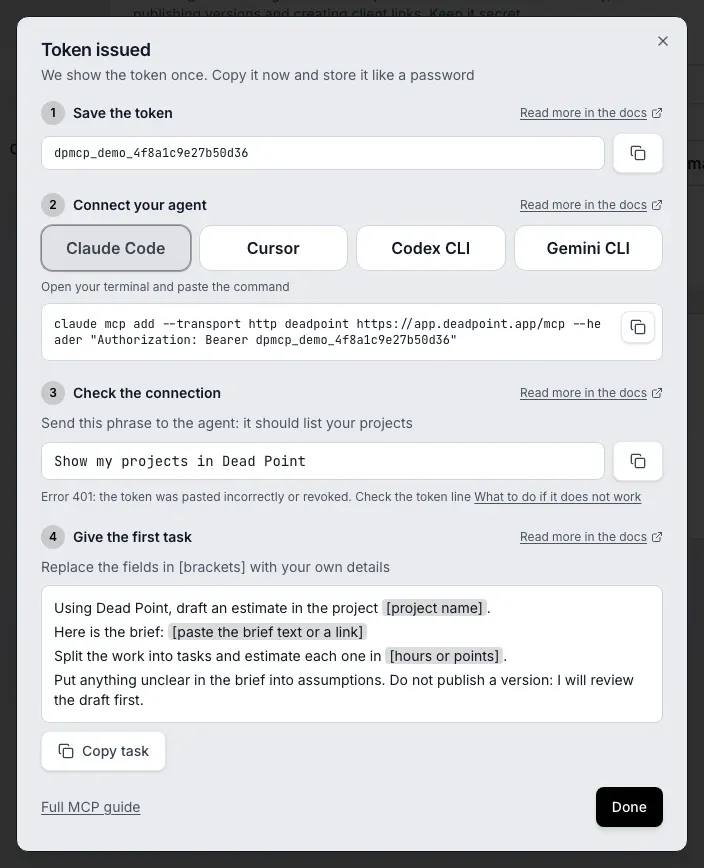
Cursor
Section titled “Cursor”Add the block to the file ~/.cursor/mcp.json. If the file already has mcpServers, add only the deadpoint entry to it. Restart Cursor.
{ "mcpServers": { "deadpoint": { "url": "https://api.deadpoint.app/mcp", "headers": { "Authorization": "Bearer <token>" } } }}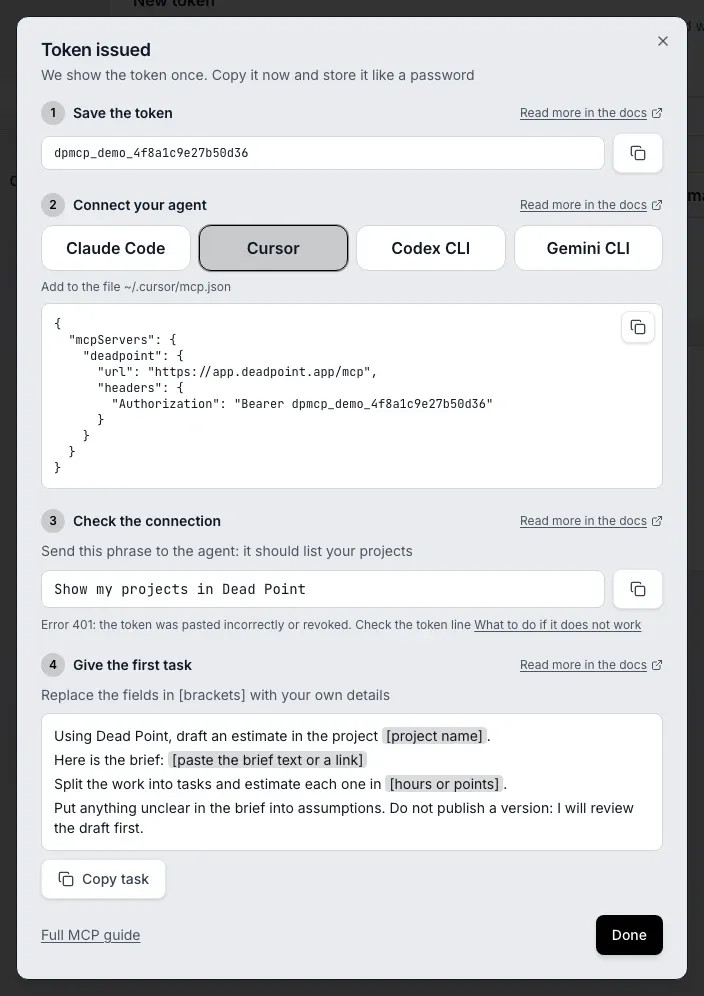
Codex CLI
Section titled “Codex CLI”Add the first three lines to the file ~/.codex/config.toml, then run the export line in your terminal: Codex CLI reads the token from the DEADPOINT_MCP_TOKEN environment variable. Start Codex CLI from the same terminal window.
[mcp_servers.deadpoint]url = "https://api.deadpoint.app/mcp"bearer_token_env_var = "DEADPOINT_MCP_TOKEN"
export DEADPOINT_MCP_TOKEN=<token>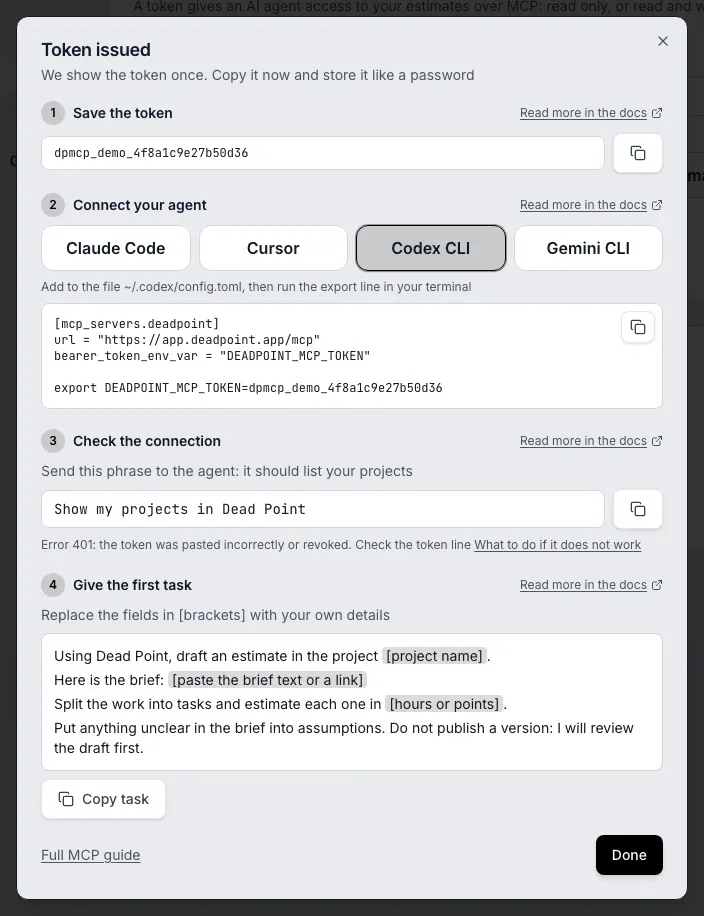
Gemini CLI
Section titled “Gemini CLI”Add the block to the file ~/.gemini/settings.json. If the file already has mcpServers, add only the deadpoint entry to it. Restart Gemini CLI.
{ "mcpServers": { "deadpoint": { "httpUrl": "https://api.deadpoint.app/mcp", "headers": { "Authorization": "Bearer <token>" } } }}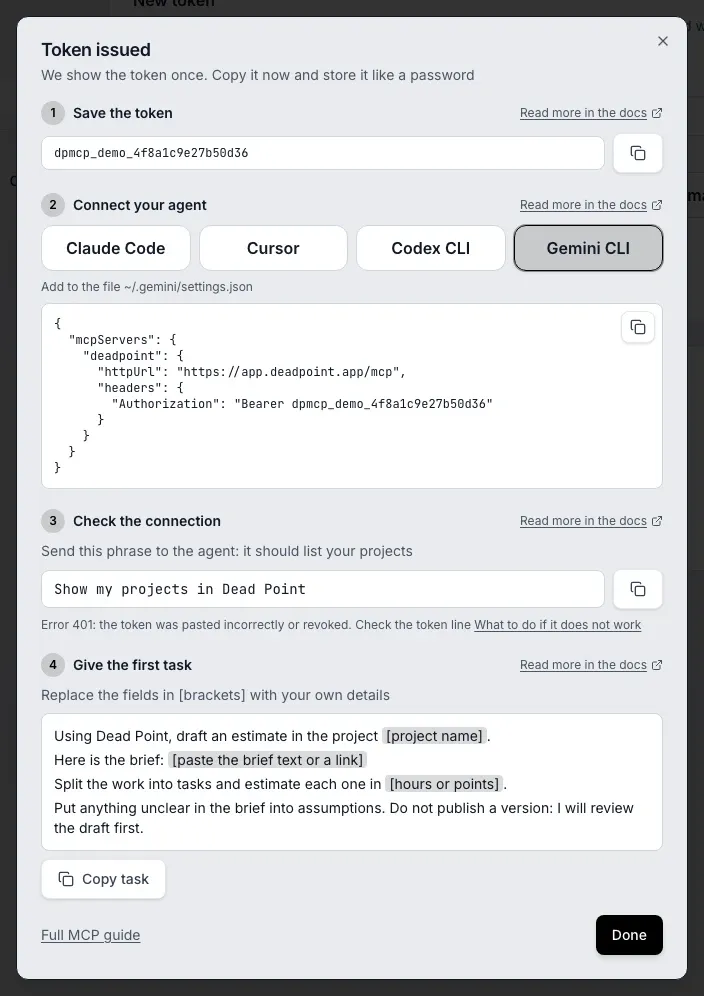
Verify the connection
Section titled “Verify the connection”Send the agent this phrase:
Show my projects in Dead PointThe connection works if the agent names the projects of your workspace. An empty list in an empty workspace is also a success: the agent reached Dead Point and got an answer. A 401 error, or a reply that no such server exists, is covered in "Troubleshooting".
Example tasks
Section titled “Example tasks”The last step of the window offers a task template. Replace the fields in [brackets] with your own details and send it to the agent. Tasks that create or publish something need a token with write access.
A draft estimate from a brief
Section titled “A draft estimate from a brief”Using Dead Point, draft an estimate in the project [project name].Here is the brief: [paste the brief text or a link]Split the work into tasks and estimate each one in [hours or points].Put anything unclear in the brief into assumptions. Do not publish a version: I will review the draft first.More about assumptions and the label: see the section on building an estimate from a brief below.
Review of a finished estimate
Section titled “Review of a finished estimate”In Dead Point, open the estimate [estimate name] in the project [project name].Find items without an estimate and tasks larger than [number] [hours or points].Make a list of remarks with the item names. Change nothing.A version and a client link
Section titled “A version and a client link”Publish a version of the estimate [estimate name] in the project [project name] and create a client link for [client name].Send the approval request to [client email].Send me the link and the approval status.More: Client proposal through an agent.
Switch to another currency
Section titled “Switch to another currency”Convert the draft estimates of the project [project name] to [currency] at the rate [rate].Show the preview first and apply it after I confirm.More: Currency and project copy through an agent.
Build an estimate from a brief
Section titled “Build an estimate from a brief”You need a token with write access. Paste the brief into the agent and ask, for example: "Build an estimate from this brief in the Studio website project".
- The agent creates a draft estimate with all items in a single call. If one item is invalid, nothing is created.
- The agent names the effort unit itself: hours or points on the workspace scale. The server rejects a value outside the scale and suggests valid ones.
- The agent writes its own assumptions (what it took as a default, what the brief did not cover) into the estimate.
- A repeated request with the same key does not create a second estimate. Without a key the agent creates a copy.
What the agent changes and what it does not
Section titled “What the agent changes and what it does not”- With write access it publishes versions of any estimate in the workspace and creates client links (Client proposal through an agent). You need the right to edit estimates in the project.
- With write access it changes the rate, the points scale and the default currency of the workspace, but only after you confirm the preview, and only if the token was issued by an owner or admin (Workspace settings through an agent).
- With write access it converts the draft estimates of a project into another currency at your rate and copies a project without participants, issues and client data, but only after you confirm the preview (Currency and project copy through an agent).
- It edits and removes items only in drafts it created over MCP on your behalf.
- It does not change items of estimates made in the app or of published versions.
- A read-only token writes nothing.
Assumptions and the label on the estimate page
Section titled “Assumptions and the label on the estimate page”An estimate made by the agent stays a draft. The estimate page shows the "Created via MCP" label and the "Assumptions" block with the agent's text. Check them before you publish a version or send it to a client.
Troubleshooting
Section titled “Troubleshooting”Error 401
Section titled “Error 401”The token was pasted incorrectly, an extra space or line break got into the line, or the token was revoked. Check the line Authorization: Bearer <token>. If you lost the token, issue a new one (it is shown once) and repeat the connection step.
The agent does not see the server
Section titled “The agent does not see the server”Restart the agent: it reads the config at startup. Check the file path and the commas in the JSON. For Codex CLI make sure export ran in the same terminal window the agent was started from. For Claude Code run claude mcp list: deadpoint must be in the list.
The limit is used up
Section titled “The limit is used up”A quota_exceeded reply means the 100 calls per month per workspace are spent: the reset date is shown on the "MCP" tab and in the reply. A rate_limited reply means the token went over 60 calls per minute: repeat the request in a minute.
Limits
Section titled “Limits”- 100 calls per month per workspace.
- 60 calls per minute per token.
The "MCP" tab shows your usage: "Used N of 100" and the reset date. When the monthly limit is used up, the tab says: "This month's MCP limit is used up". It also shows the reset date, the 1st of next month UTC. Unlimited use is coming with Pro. The agent gets a quota_exceeded reply with the limit and the reset date. Over the per-minute limit the reply is rate_limited: repeat the request in a minute.
Extra calls
Section titled “Extra calls”An extra allowance adds calls to the monthly limit of a workspace. It comes from a promo code or from a Dead Point administrator. The "MCP" tab shows the limit in parts: for example, "100 free + 500 by promo code until December 31" means 600 calls a month while the allowance lasts. A dated allowance works up to and including that date. After it the limit goes back to 100 calls a month, and tokens and connected agents keep working. An allowance with no end date lasts until it is removed. The per-minute limit of 60 calls per token does not change.
Promo code
Section titled “Promo code”Enter the code on the "MCP" tab in the "Have a promo code?" block: the "Promo code" field and the "Apply" button. The code applies to the workspace that is open in the app right now: to add calls to another workspace, switch to it and enter the code there. On success the tab says how many calls were added and until when. If the code is not accepted, the tab explains why:
| Message | What to do |
|---|---|
| This code does not exist. Check it for typos | Compare the code with the message you got it in |
| This code has expired | Ask for a new code |
| This code has reached its usage limit | Ask for a new code |
| This code is already applied in this workspace | Nothing to do: the allowance is already active |
| This code was issued to another user | Sign in to the account the code was issued to, or ask for your own |
| This code is not for MCP | The code is meant for another feature and does not work for MCP |
| Too many attempts. Try again in a few minutes | Wait and enter the code again |
| Could not apply the code. Try again | Try again, and if it fails again, contact support |
Revoke a token
Section titled “Revoke a token”In the "Your tokens" list click "Revoke" and confirm. Agents using this token lose access immediately, and a revoke cannot be undone. If a token ended up in the wrong place, revoke it and issue a new one.