

Payment details and the "How to pay" block
Your client approves the estimate and sees right away where to pay. You enter your payment details and bank accounts once in workspace settings, then turn on the How to pay block in the client link. The client gets the amount in the account currency, the details with copy buttons, a QR code for their banking app and, if you have one, a Pay online button.
Before you start
Section titled “Before you start”- You have your bank account details: IBAN or account number, SWIFT/BIC, currency
Step 1. Fill in your payment details
Section titled “Step 1. Fill in your payment details”Payment details live in workspace settings: Settings, the General tab, the Payment details row. Click the row to expand the form. Changes are saved automatically, and the status shows above the settings: Saving…, then Saved at and the time; if it fails you see Not saved and a Retry button.
- Fill in Legal or trading name, Country (a two-letter code, for example GE) and Address
- If needed, add a Tax ID / VAT number
- Click Add account and fill in the account:
- Account holder: the name on the account
- Bank name
- IBAN or account number
- SWIFT/BIC: 8 or 11 characters, for example BAGAGE22
- Account currency
- If needed, set a Payment reference template and a Payment link, and for transfers through an intermediary bank, expand Intermediary bank (optional)
- Click Save payment details
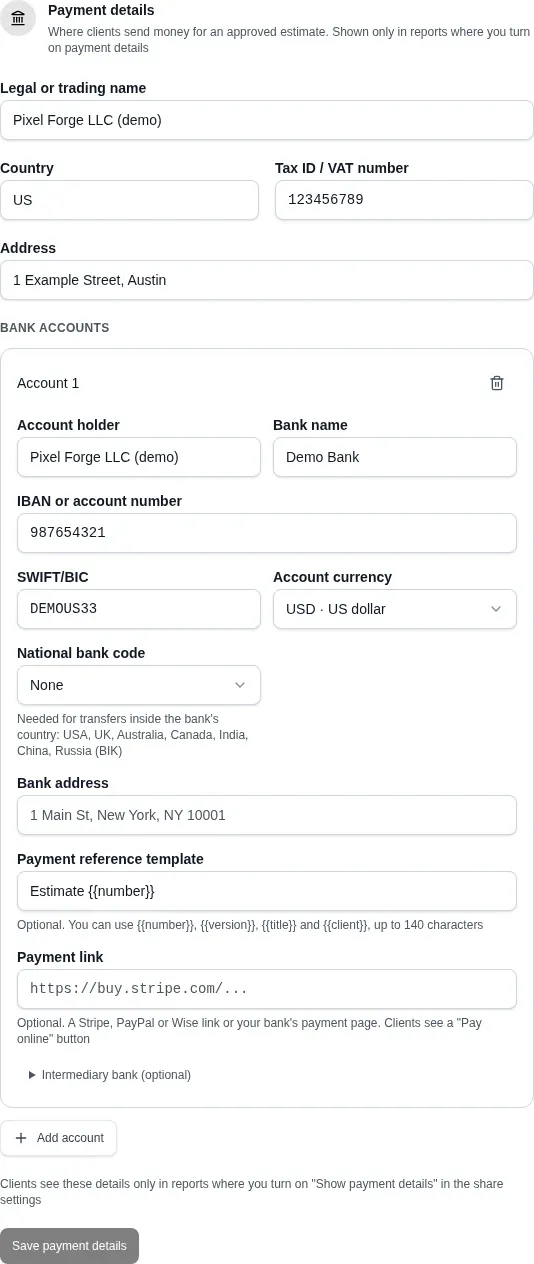
A workspace can have up to 10 accounts. It helps to keep a separate account for each currency your clients pay in.
IBAN and SWIFT checks
Section titled “IBAN and SWIFT checks”- If the number looks like an IBAN, Dead Point checks its checksum. On success the field shows IBAN checked, on a typo you get This IBAN does not pass the checksum
- A number that does not look like an IBAN is treated as a local account number: letters, digits, spaces, dots, slashes and hyphens are allowed
- SWIFT/BIC is checked for length and format: 8 or 11 characters
Payment reference template
Section titled “Payment reference template”The payment reference is built from a template, for example Estimate {{number}}. Available placeholders:
| Placeholder | What it becomes |
|---|---|
{{number}} | Estimate number: 8 characters and the version number, for example 3F2A91C0-2 |
{{version}} | Version number |
{{title}} | Estimate title |
{{client}} | Recipient from the link settings |
The final string is cut to 140 characters, the SEPA transfer limit. The form rejects unknown placeholders.
Payment link
Section titled “Payment link”In Payment link you can paste a Stripe, PayPal or Wise link, or your bank's payment page. It must be a full https:// link, up to 500 characters. The client sees a Pay online button on that account, and the page opens in a new tab.
Step 2. Turn the block on in the client link
Section titled “Step 2. Turn the block on in the client link”- Open the estimate and click Configure client link
- In the Access and sending group, expand Recipient, payment, offer validity
- Turn on Show payment details in the client report
- Under Accounts in the report, select the accounts. If you select none, the client sees accounts in the estimate currency, or all accounts if there are none in that currency
The Before sending checklist in the link editor shows how many accounts go into the report, or the hint No accounts: add payment details in studio settings.
What your client sees
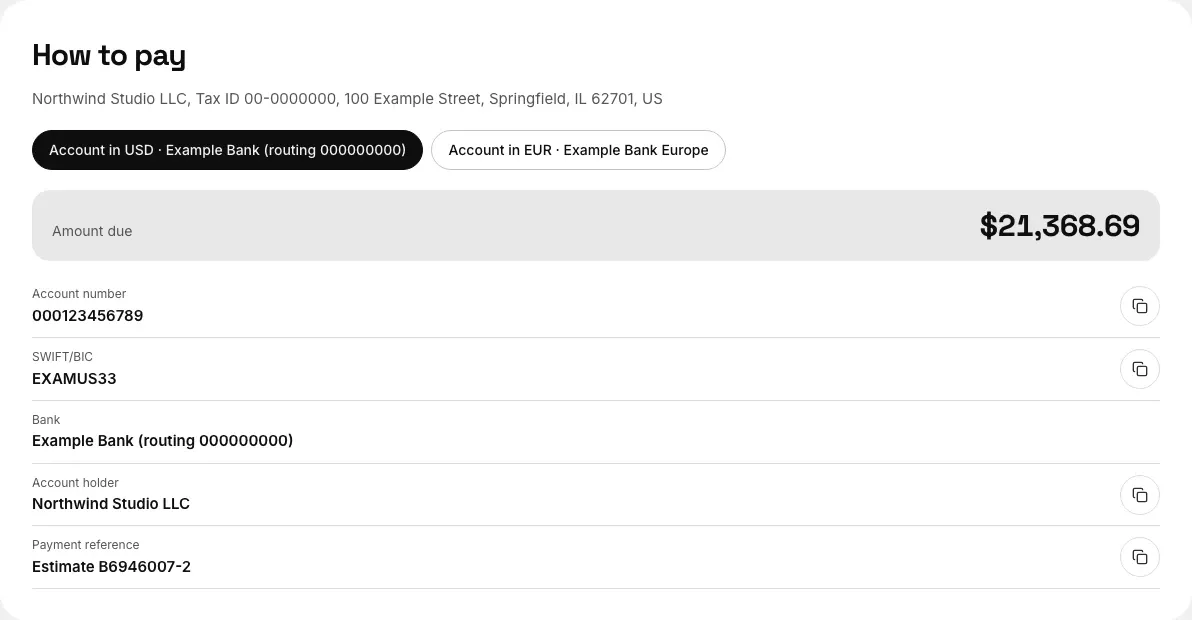
Section titled “What your client sees”The client link page gets a How to pay section. With several accounts, the client switches between them with tabs. For each account:
- Amount due in the account currency. If the account currency differs from the estimate currency, the amount is converted at the rate frozen in the published version, with the rate line below, for example "1 USD = 0.8938914494 EUR on Oct 14, 2026 (nbg.gov.ge)"
- account holder, bank, IBAN or account number, SWIFT/BIC, intermediary bank and Payment reference. IBAN, SWIFT and the reference have copy buttons
- a QR code labeled Scan in your banking app, if the account fits SEPA (see below)
- a Pay online button, if the account has a payment link
If there is no rate for the account currency, the amount is shown in the estimate currency with the note No exchange rate for GEL: pay the equivalent at your bank's rate.
The amount due follows the recommended scenario, or the main one if there is no recommendation.
Example
Section titled “Example”A US studio sends an estimate in USD for $21,368.69 and shows two accounts. On the USD account the client pays $21,368.69. On the EUR account the amount is converted at the version rate, €19,091.12, with a SEPA QR code next to it. See it on the demo link.
QR code for a SEPA transfer
Section titled “QR code for a SEPA transfer”The QR code follows the EPC standard (SEPA Credit Transfer). Banking apps in SEPA countries read the payee, IBAN, amount and reference from it, so your client types nothing by hand.
The QR code appears only when:
- the account currency is EUR
- the account number is an IBAN from a SEPA country
- the fields fit the standard: holder name up to 70 characters, reference up to 140
If the amount in euros cannot be calculated (no rate), the QR code has no amount and the client enters it.
In PDF and Excel
Section titled “In PDF and Excel”- PDF: a payment section with the details, the QR code to the right of them, and the online payment link, clickable and visible as text
- Excel: a Payment sheet with the account details and a row with the payment link
Privacy and updates
Section titled “Privacy and updates”- An open link shows your current details: fix an account in settings, and the client sees the new one
- A password-protected link seals the details when it is created. To show new details, change the link password: the link is rebuilt