

Project page and creating a project
A project holds the estimates of one client or one piece of work. The project page shows its status and the dates it is planned for, and the latest estimate opens in one click.
Create a project
Section titled “Create a project”- Open the project list of the workspace
- Click New project at the top right
- Enter a name: without it the project is not created and the window answers "Enter a project name"
- If you like, add a description, an icon and a color, choose a status and set Start and End
- Click Create project or press Cmd+Enter (Ctrl+Enter on Windows and Linux): the new project appears in the project list
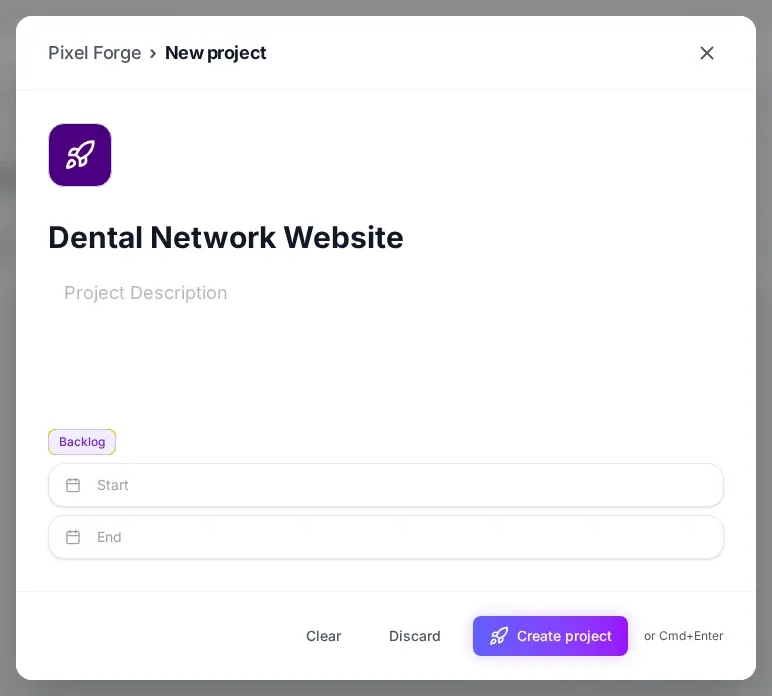
The default status is Backlog. The end date cannot be earlier than the start: the window shows "End date cannot be before start date". The status and the dates are optional, you can set them later on the project page.
The draft of a new project
Section titled “The draft of a new project”If you close the window with something already typed in, there is no question about discarding: what you typed is saved on this device, separately for each workspace. Open New project again and the name, description, status and dates come back. The Clear button resets the form and erases the draft, and the draft also disappears once the project is created. On another device or in another browser there is no draft.
The project page
Section titled “The project page”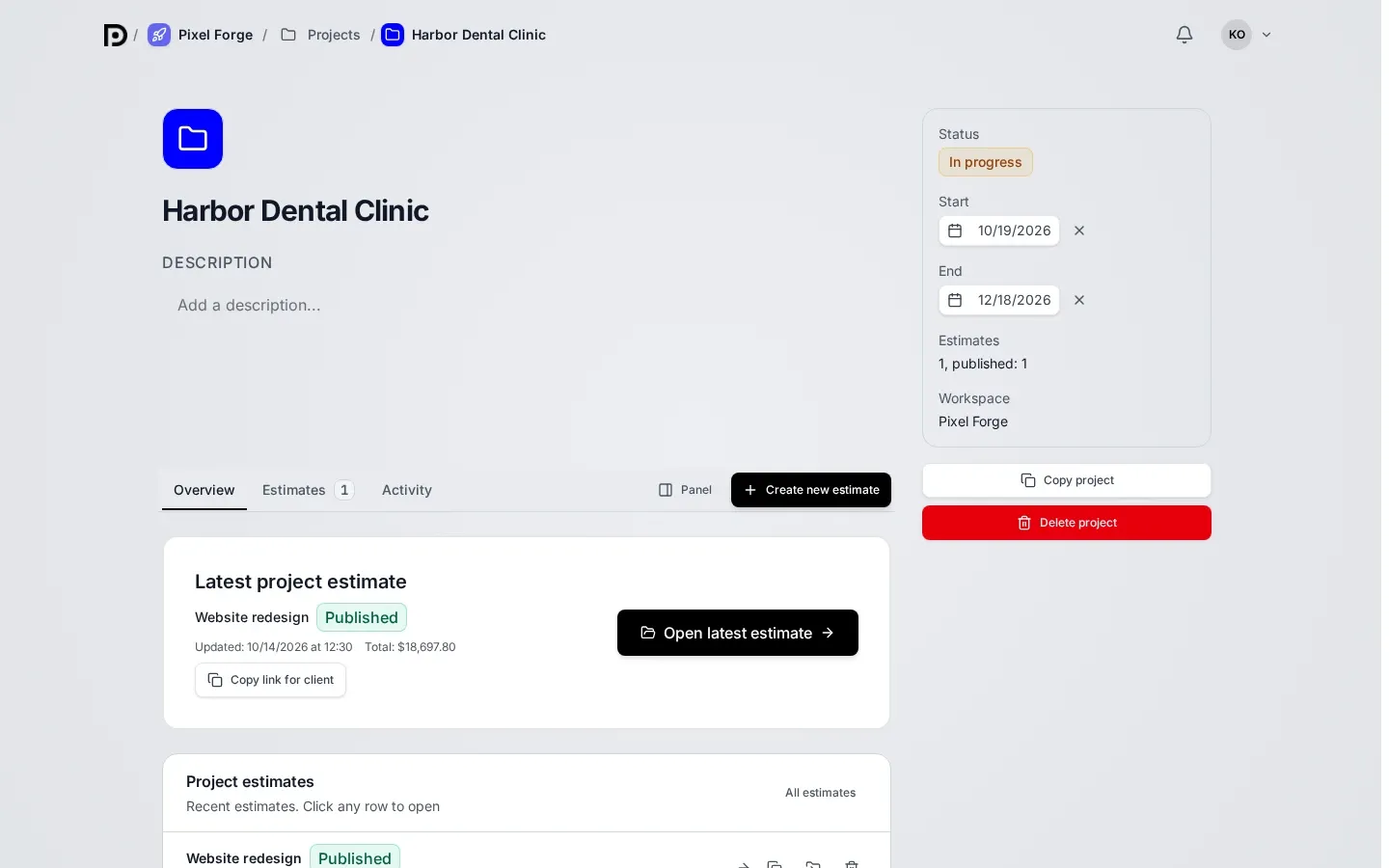
On the left are the name, the description and the tabs Overview, Estimates and Activity. The main action of the tabs changes with the project: Create first estimate for a project without estimates, Create new estimate for a project that has them. The properties panel stands on the right.
Status and dates in the properties panel
Section titled “Status and dates in the properties panel”The Properties panel shows the status, Start, End, the number of estimates (and how many of them are published) and the workspace.
- Status. Pick it from the list: Backlog, Planned, In progress, Completed or Canceled. The new value is saved at once. "On hold" and "Archived" are not offered in the list: they appear only when the project is already in one of them
- Start and End. Pick a date in the calendar or type it in. The button with a cross (Clear date) removes the date and the field goes back to "Not set". If the end is earlier than the start, the message "End date can't be earlier than the start" appears and the date is not saved
If saving fails, the message says so: "Couldn't change the status. Try again" or "Couldn't change the date. Try again". Repeat the action.
On a screen at least 1024 pixels wide the panel stands on the right, on a narrow screen it turns into a row under the project name. Members who manage the project can change the status and the dates: the others see the values without fields.
Hide the panel
Section titled “Hide the panel”The Panel button in the tab strip hides and shows the properties panel again. Ctrl+I (Cmd+I on a Mac) does the same while the focus is not in an input field. It helps on a small laptop, when the description and the estimates need the full width.
Project actions
Section titled “Project actions”Under the properties there are two buttons. Copy project creates a copy, and the article Project copy describes what goes into it and what stays with the original project. Delete project archives all estimates of the project, the action cannot be undone, and only the workspace owner has the button.
The latest estimate and the client link
Section titled “The latest estimate and the client link”On the Overview tab the Latest project estimate card shows the name of the estimate, its status (Draft, Published), the update date and the Total. The Open latest estimate button leads to the editor. While the estimate is in progress, the card is called Continue working on the estimate and the button Continue estimate.
If the estimate has an open client link, the card shows the Copy link for client button: after you click it the link is in the clipboard and the window answers "Link copied".