

Normal and Overload scenarios
The same work is calculated in two modes. Normal matches the team's usual pace, Overload shows a faster option for a rush order. Put side by side, they give your client a choice: "cheaper and longer" or "faster and more expensive".
Why two scenarios
Section titled “Why two scenarios”Urgency costs money: to finish sooner, the team works at a higher load, and that pace has a higher rate. A single number does not show this, and the client does not see what they give up.
So Dead Point calculates two scenarios from the same estimate data:
- Normal: the base calculation from your effort and rates
- Overload: the same scope at a faster pace with a rush surcharge
Overload has two parameters:
- Team speed boost (%): how much faster the team works in this mode (50% means 1.5 times faster)
- Rush rate surcharge (%): an increase to the base cost of work for the rush pace
How to turn on Overload
Section titled “How to turn on Overload”- Open the estimate and go to the Settings tab
- Find the Accelerated scenario group and turn on Enable overload scenario
- Set Team speed boost and Rush rate surcharge with the sliders. The preliminary result card shows the accelerated rate and capacity right away, but they reach the estimate total only after you save
- Click Save changes. Discard brings back the previous values. If saving fails, the bar shows "Not saved" with the reason, and the slider values stay so you can try again
- Go to the Compare tab: both scenarios are recalculated with the saved settings
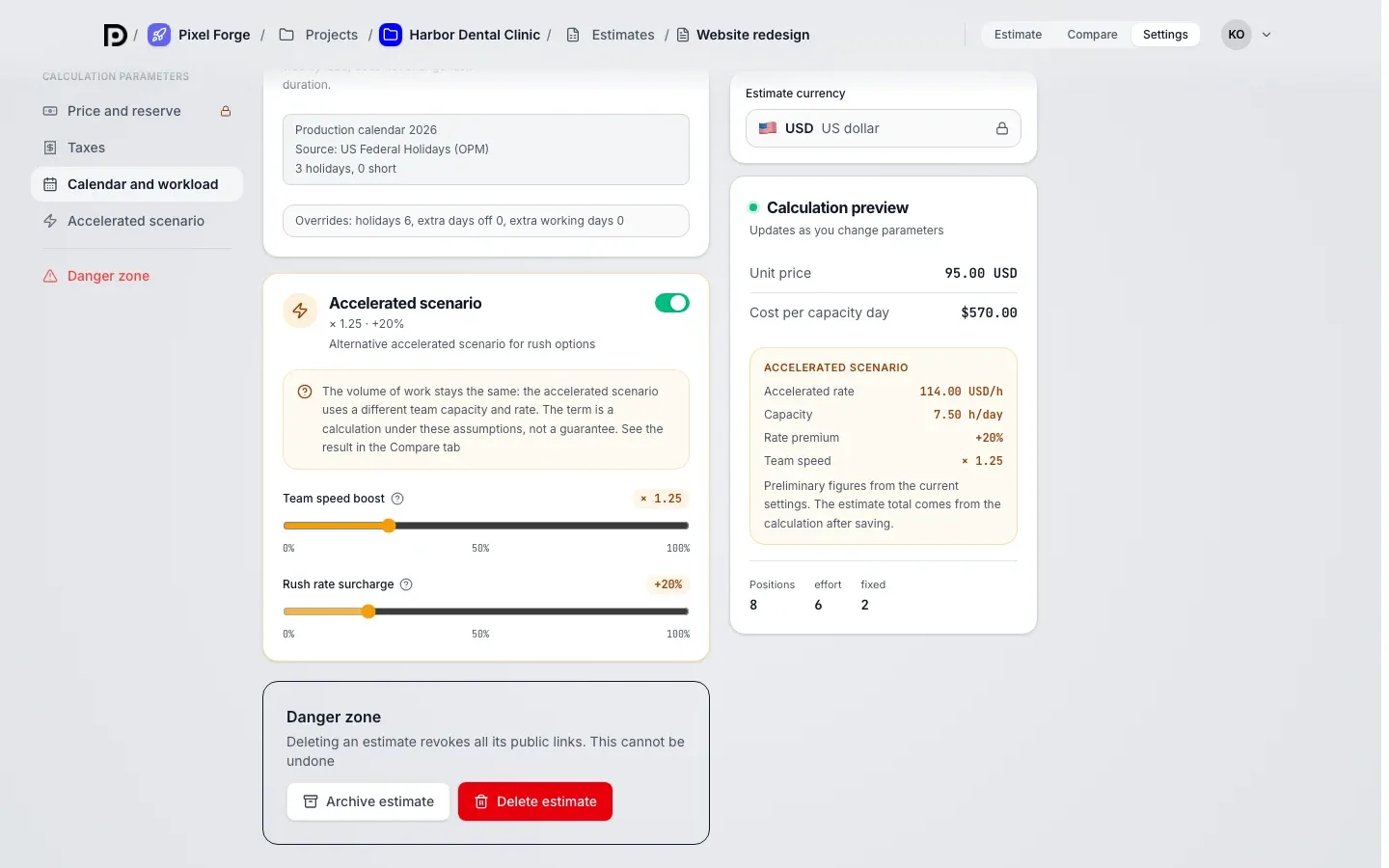
Acceleration does not change the volume of work: the scenario uses a different team capacity and a different rate. The Overload timeline is a calculation under these assumptions, not a guarantee.
What Compare shows
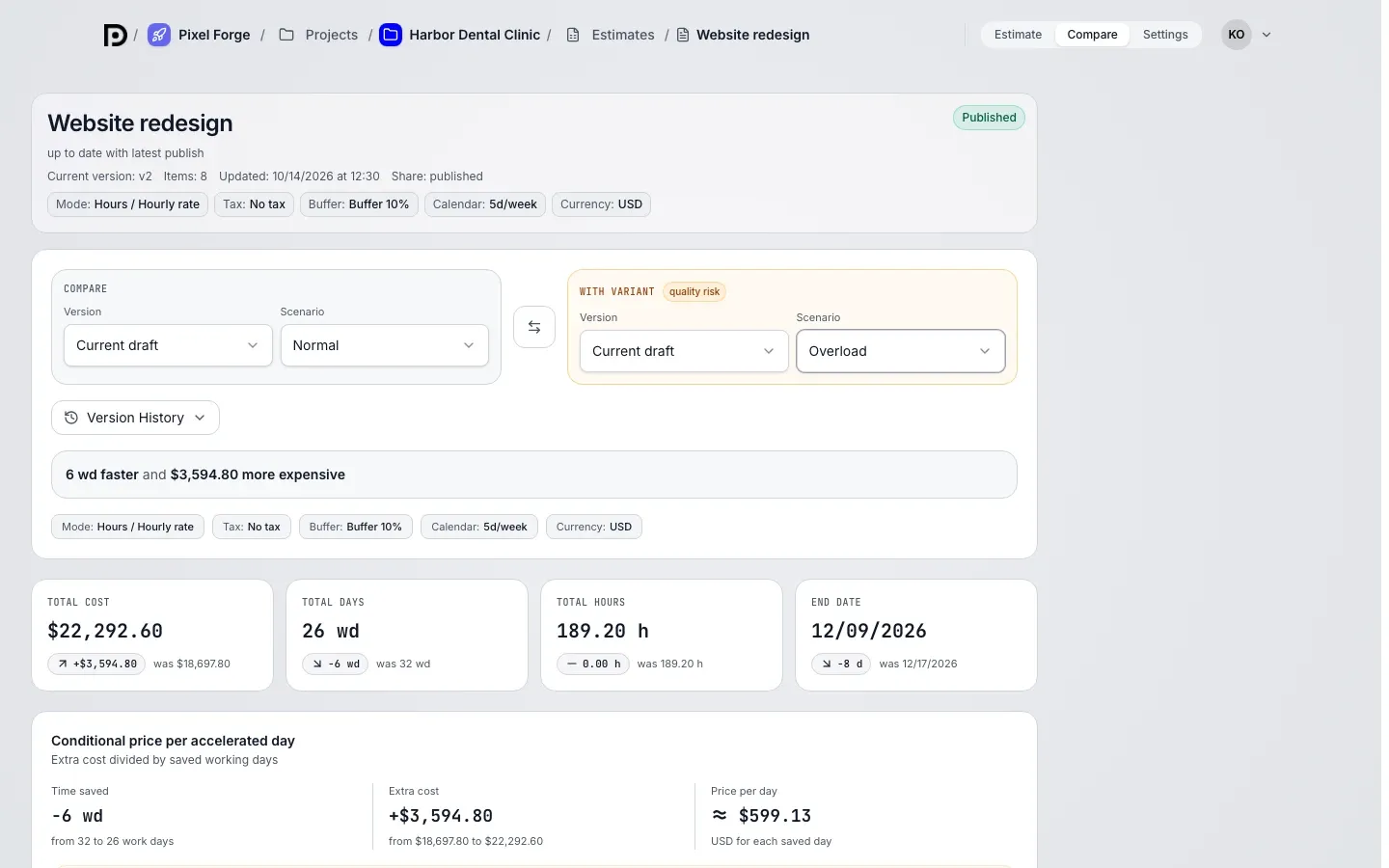
Section titled “What Compare shows”At the top of the tab there are two sides: Compare and With variant. On each side you pick a Version (the draft or a published version) and a Scenario: Normal or Overload. To compare scenarios, pick the same draft on both sides and different scenarios.
The cards show the key figures for the selected variants and the difference between them:
- effort: total hours or points
- duration: length in working days
- end date: with the working-day calendar applied
- total cost: the final amount of the scenario
The Conditional price per accelerated day block divides the extra cost by the working days saved and shows Time saved, Extra cost and Price per day. It is calculated only when the data is comparable: the same volume, units and currency. Otherwise you see why there is no price per day.
The difference answers the key negotiation question: how many days earlier the project closes and what the acceleration costs.