

Estimate copy
Copy an estimate when the new one looks like an old one: another client, another scope, the same rates and settings. You get a new draft with the same line items and keep working on it, while the original stays as it was.
How to copy
Section titled “How to copy”Every estimate in the project list has the button, on both the Overview and Estimates tabs.
- Open the project and find the estimate in the Project estimates block
- Press Copy estimate in the estimate row: it is the copy icon next to the trash can
- The copy shows up in the list right away, the new estimate does not open by itself
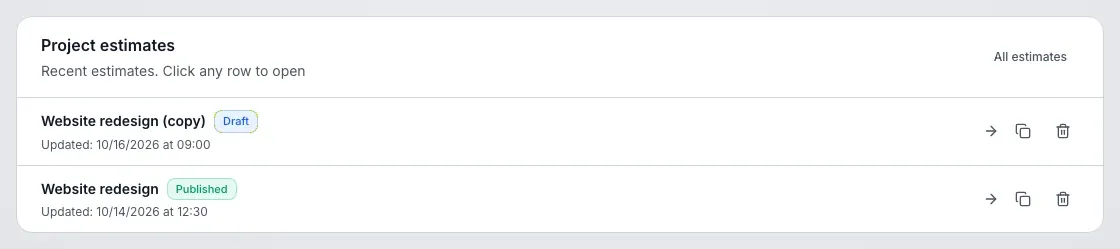
The copy lives in the same project. Open it from the list to work with it.
What goes into the copy
Section titled “What goes into the copy”- Line items. Effort and fixed-cost items with the same amounts and currencies, in the same order
- Estimate settings. Calculation mode, rates, risk buffer, tax, rounding and the working-days calendar
- The Overload scenario. If it was on, it is on in the copy
- Estimate currency and manual rates. The rate currency and the rates you set by hand carry over as they are
The total of the copy is calculated again with the latest official rates, the same as the draft of the original. The sum of items in another currency can differ from the published version of the original. More on rates in Currencies and rates.
What stays with the original
Section titled “What stays with the original”These do not go into the copy:
- versions: the copy has no history, its first publish creates version 1
- client links: the link keeps pointing to the original, create a separate one for the copy
- approvals: the status and the decisions of the client stay with the original
A copy is always created as a Draft, even if the original is published.
Copy to another project
Section titled “Copy to another project”You can also copy an estimate to another project of your workspace.
- In the estimate row, click Copy to another project: the folder-with-arrow icon next to the copy icon
- In the Copy estimate to a project window, pick a project from the list. Active projects of the same workspace where you are a member are shown. The current project and archived ones are not in the list
- Click Copy: the button is active once a project is selected
After the copy is made, the selected project opens, not the current one. The copy there is a draft named like the original estimate with the suffix "(copy)", for example Website redesign (copy).
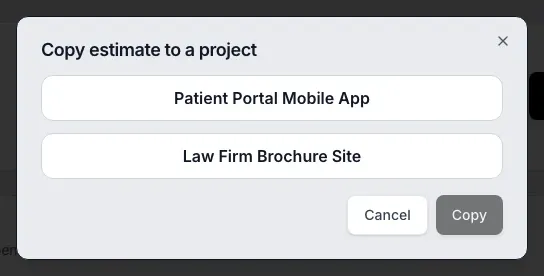
The copy is the same as a copy inside the project: a draft with the same line items and settings, without versions, links, or approvals. The currency of the copy does not change.
Any role in the source project is enough. You need a role that can create estimates in the target project. If you have no permission for the selected project, no copy is created and the window stays open with the message "You don't have permission to copy estimates to the selected project". If there are no suitable projects, the window shows "No other projects where you are a member" and there is nowhere to copy to. If the list fails to load, the window shows "Couldn't load projects. Try again".
Name of the copy
Section titled “Name of the copy”The name of the original gets a suffix in the language chosen in your account (Account, Language tab): Website redesign (copy). If no language is saved in the account, the suffix follows the language of the region. The name is at most 255 characters: if the original is longer, it is trimmed and the suffix stays whole.
Who can copy
Section titled “Who can copy”Copying is open to those who can create estimates in the project. Without the right, a message appears above the list: "You don't have permission to copy estimates in this project". If the copy fails for another reason, the message is "Couldn't copy the estimate. Try again", so repeat the action.